I spent a few weeks setting up automated DAST scanning with ZAP for a Django application at work. The unauthenticated scanning was trivial. Getting ZAP to stay authenticated against a real application, inside a Docker container, on a cron, with results going to Slack took the rest of the time. Everything in this post is what I learned getting that working.
Start with the GUI
Even though the goal is full automation, start in the GUI. Configure and test everything interactively, then export the configuration for the CLI. When the Docker scan inevitably breaks, the GUI is how you debug it. Run the same config in both environments and compare.
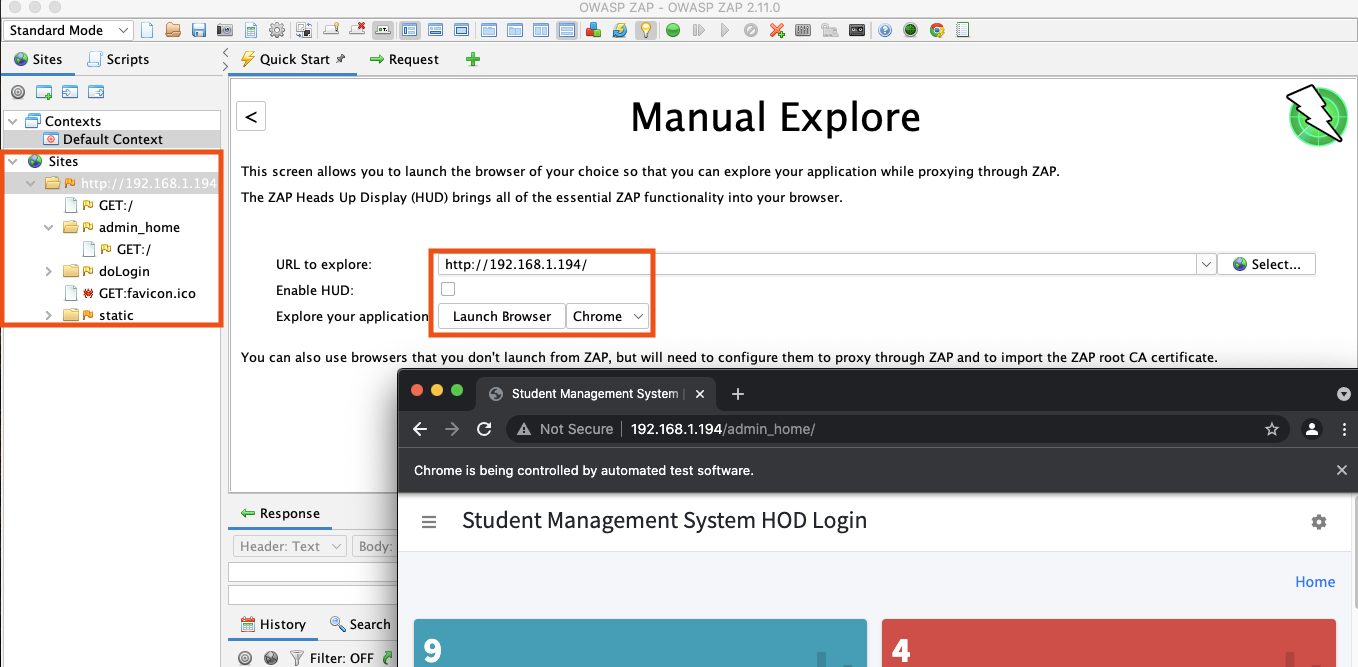
Contexts
ZAP organizes everything around "contexts": URL scope, authentication method, session management, credentials, technology stack, scan settings. You configure a context in the GUI, export it as XML, and pass it to Docker later.
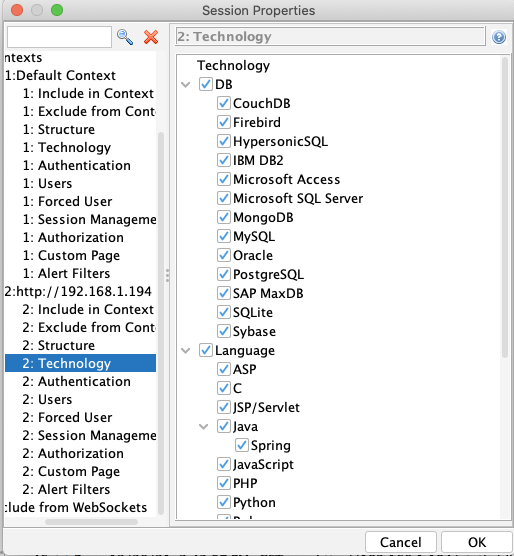
Right-click the target URL in the Sites tree, Include in Context -> New Context. Three settings to configure upfront:
Technology: Disable checks for languages and servers your app doesn't use. If you're scanning a Django app on PostgreSQL, turn off SQL Server and ASP.NET checks. Less noise, faster scans.
Session Management: Tell ZAP how your app maintains sessions. For cookie-based sessions, select Cookie-based Session Management and ZAP will include the session cookie in every request automatically.
Authorization Detection: How ZAP recognizes an unauthorized response. This can be an HTTP status code (403) or a regex in the response body. ZAP uses this to detect when the session has dropped and trigger re-authentication.
Authentication with Mozilla Zest
ZAP has built-in form-based and JSON-based auth methods that work for simple login forms. For anything more complex (multi-step flows, CSRF tokens, JavaScript-rendered login pages, OAuth), you need a Zest script.
Zest is a JSON-based scripting language for recording and replaying HTTP sequences. The workflow:
- Create a new Zest authentication script from the Scripts tab
- Parameterize it for different users and URLs
- Start recording and manually log in through ZAP's integrated browser
- ZAP captures every request in the login flow as a Zest step
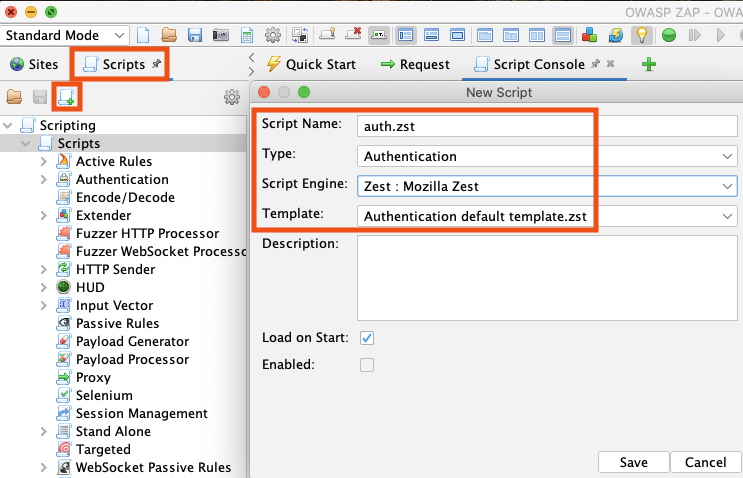
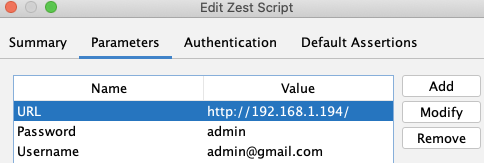
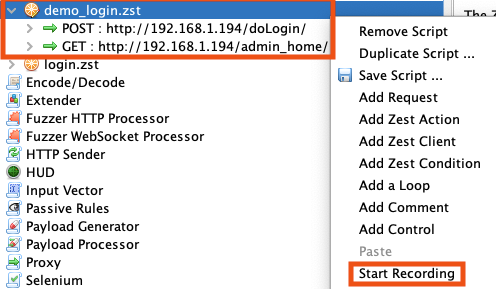
Test it with the Run button in the Script Console tab. ZAP checks assertions (response size, status codes) to verify login succeeded. If it fails, it's usually a CSRF token the script isn't capturing or a redirect it doesn't follow.
Once it works, add it to the context as the authentication method:
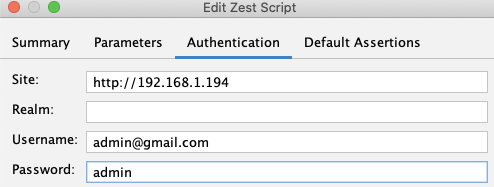
Two more settings in the context:
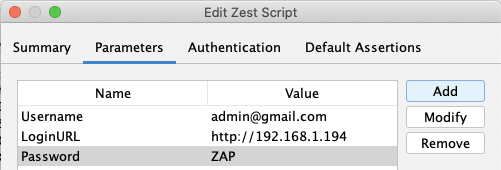
Logged In/Out indicators: Regex patterns matching content that's only visible when authenticated (a "Logout" link) or unauthenticated (a "Login" button). ZAP uses these to detect dropped sessions and re-authenticate.
Forced User Mode: The lock icon in the toolbar. Enable it to force every request through the configured user. Without this, some requests go out unauthenticated.
Running Scans
With authentication configured, run scans in the GUI first to get a baseline before moving to Docker.
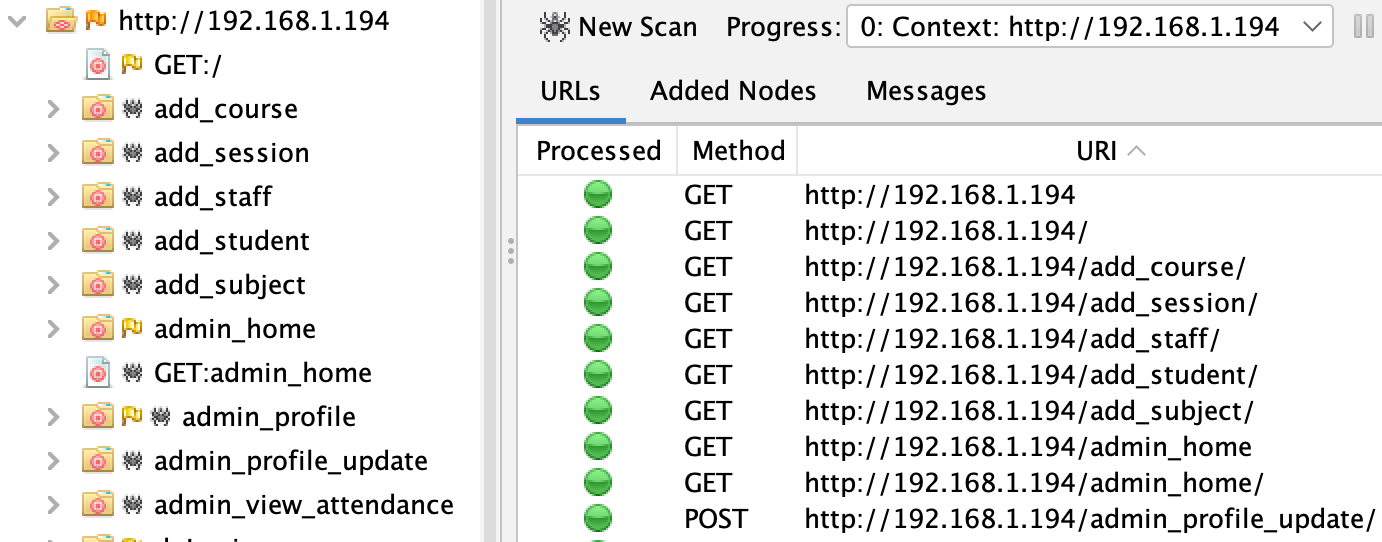
Spider: Right-click the context and run the Spider to crawl and discover endpoints. For JavaScript-heavy apps, run the Ajax Spider too, which uses a real browser to find dynamically rendered content.
Active Scan: The actual vulnerability scan. Sends attack payloads to every discovered endpoint and parameter. For a typical Django app, expect about 20 minutes with default settings.
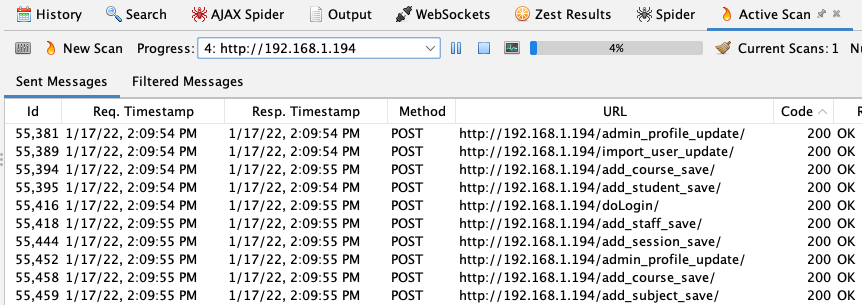
Note the number of URLs discovered and alerts generated. You'll compare against these numbers to verify the Docker scan is actually working.
Docker Automation
Export the context file (.context) and Zest script (.zst) from the GUI. These get mounted into the ZAP Docker container.
ZAP's Docker image has wrapper scripts for common scan types. zap-full-scan.py runs the spider, ajax spider, and active scan in sequence:
docker run -v $(pwd):/zap/wrk/:rw -t owasp/zap2docker-stable zap-full-scan.py \ |
| Flag | Purpose |
|---|---|
-v $(pwd):/zap/wrk/:rw |
Mounts current directory into the container for context/script reading and report writing |
-t http://targeturl |
Target URL |
-j |
Run the Ajax Spider in addition to the traditional spider |
-d |
Debug output (you want this) |
-n demo.context |
Load the exported context file |
-U admin |
User to authenticate as (must exist in the context) |
-z "..." |
Additional ZAP CLI options, in this case loading the Zest auth script |
-J zap_results.json |
Write results as JSON |
To load multiple scripts, increment the index: script.scripts(0) for the first, script.scripts(1) for the second.
Slack Reporting
ZAP can output HTML, Markdown, and JSON reports. For a scheduled scan, a Slack notification with a summary is more useful than a report file nobody opens.
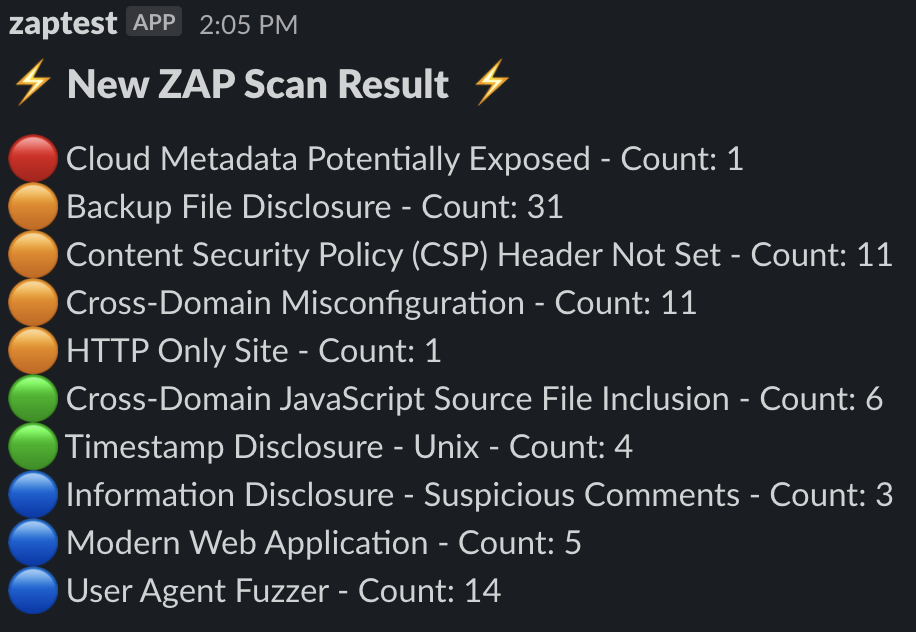
I wrote a small script that parses the JSON output and sends a color-coded summary to a Slack webhook:
import json |
Red for high, orange for medium, green for low, blue for informational. The value over time isn't any single scan. It's watching the delta between scans. A new red finding means something regressed. A finding disappearing means a fix shipped.
Troubleshooting
The most frustrating thing about containerized ZAP scans is that they fail silently. The scan completes, produces a report, but the report is missing findings because auth broke halfway through or the spider only found half the endpoints. Always run with -d and compare against your GUI baseline.
Authentication dropping mid-scan: The most common issue I hit. The active scan takes 20+ minutes, and if the session expires faster than ZAP re-authenticates, you're scanning unauthenticated pages for most of the run. Check your web server logs for 401/403 responses during the scan. A wall of them partway through means the session expired and the Logged In/Out indicators aren't triggering re-auth correctly. Tighten the regex patterns.
Low endpoint count: Compare the number of URLs the Docker spider discovers against the GUI baseline. If Docker finds significantly fewer, the spider is probably hitting unauthenticated pages and can't follow links behind the session. This cascades into fewer findings in the active scan.
Zest script failing in the container: Worked in the GUI, fails in Docker. Common causes: the target URL is different (localhost vs. container networking), the context references a user that isn't configured, or the .zst file path in the -z config doesn't match the mount point. Check if the first few requests in the scan have your user's session cookie in the debug output.
Limitations
ZAP is a solid general-purpose DAST scanner, but there are things it's just not good at:
Single-page applications: The traditional spider follows HTML links. SPAs render content with JavaScript, and the spider can't parse that. The Ajax Spider uses a real browser which helps, but it's slower and still misses routes that require specific user interactions. If your app is a React or Angular SPA, expect gaps in coverage.
Scan noise: The default active scan generates a lot of informational and low-severity findings (missing headers, cookie flags, server version disclosure). Real observations, but they drown out the findings that matter. Tune the scan policy and filter the report output.
Complex authorization: ZAP handles authentication (proving who you are) much better than authorization (what you're allowed to do). It won't find IDOR vulnerabilities or broken access controls unless you write custom scripts for your specific authorization logic.
Automated DAST won't replace manual testing or code review, but running on a schedule it catches regressions before they ship. That's the value. An early warning system, not a comprehensive assessment.